You're sitting in a hotel room and realize the file you need is on your desktop back home. You're traveling abroad and your favorite streaming service thinks you're in the wrong country. You want to check the live feed from your front-door camera, but the app won't connect.
These are the moments when remote home network access stops being a technical concept and becomes something you genuinely wish you'd set up already.
This article explains what it actually is, walks through the most common real-life uses, and helps you figure out whether it's worth setting up for your household.
What Remote Home Network Access Actually Means
Your home network is the private bubble that connects your devices together — your laptop, your phone, your smart TV, your NAS drive, your security cameras. When you're home, everything talks to everything else without friction.
When you leave, that bubble closes. Your devices are still there, but you can't reach them from outside without some kind of bridge.
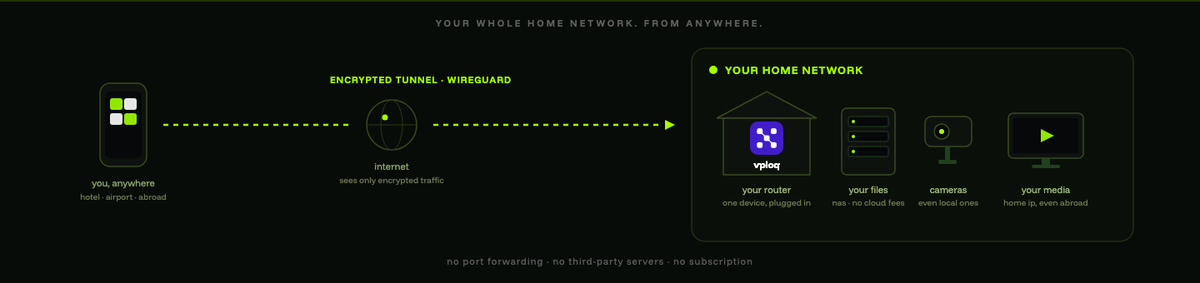
Remote home network access is that bridge. It connects your phone or laptop — wherever you are in the world — back to your home network as if you never left. Done right, your device behaves as though it's physically sitting on your home Wi-Fi, with access to the same files, devices, and internet connection.
How It Works (Without the Jargon)
At a basic level, remote access needs two things: something running at home that listens for incoming connections, and something on your device that reaches out and connects to it.
The problem is that home routers are designed to block unsolicited incoming traffic. That's a security feature, not a flaw. So most remote access solutions work around this in one of three ways:
- Opening a port on your router (port forwarding) so outside traffic can reach a specific device
- Routing traffic through a third-party server that both ends connect to, so neither side needs to accept incoming connections directly
- Using NAT traversal to let two devices punch through their respective firewalls and connect directly, without a middleman
The method matters. Port forwarding exposes your home to the open internet. Third-party servers mean someone else is handling your traffic. NAT traversal with end-to-end encryption is generally the cleanest option — and the one worth looking for.
Real-Life Use Cases
Access Your Files From Anywhere
If you store documents, photos, or media on a home computer or NAS drive, remote access lets you reach them from anywhere. No cloud subscription, no uploading files to someone else's servers. Your data stays at home, and you connect to it directly.
This matters most for people who work with large files, maintain personal archives, or just don't want to keep paying for cloud storage to access things they already own.
Stream Your Home Content Abroad
Streaming services are tied to your IP address. When you travel, your home subscriptions can stop working because the service detects you're in a different country.
Connect back to your home network, and your traffic appears to come from your home IP. The streaming service sees you as being at home — even when you're not. No separate subscription, no shared VPN server packed with other users.
Control Smart Home Devices and Cameras
Most smart home devices rely on cloud apps that work fine day-to-day. But IP cameras and local home automation systems often don't have reliable remote access built in, or they charge extra for cloud viewing.
With direct access to your home network, you can reach any device on it — cameras that only broadcast locally, home servers, anything that doesn't have its own cloud relay.
Browse Safely on Public Wi-Fi
Coffee shop networks, hotel Wi-Fi, airport hotspots — convenient, but not trustworthy. Traffic on these networks can be intercepted. When you route your connection back through your home network, everything is encrypted from your device to your home router before it goes anywhere else. That's a real layer of protection, not a theoretical one.
The Main Ways to Set It Up
There are a few common approaches, and each comes with genuine trade-offs.
Traditional VPN Software (Subscription-Based)
Commercial VPN services route your traffic through their own servers. That protects you on public Wi-Fi, but it doesn't give you access to your home network specifically. You're connecting to their network, not yours — and paying monthly for the privilege.
Self-Hosted VPN on Your Router
Some routers support running a VPN server directly. This gives you genuine home network access, but it requires port forwarding, a static IP address or dynamic DNS setup, and ongoing maintenance. For most households, that's more work than it's worth.
Dedicated Hardware Devices
A newer category of product handles all of this in a small plug-in device. You plug it into your router, pair your devices once, and it creates an encrypted tunnel back to your home network automatically — no port forwarding, no cloud servers, no manual configuration.
vploq takes this approach. The device plugs into your router via Ethernet, uses the WireGuard protocol with hardware-based key storage, and supports up to five simultaneous device connections from anywhere. There's no subscription, no third-party server handling your traffic, and no port forwarding required. The companion app runs on macOS, Windows, iOS, and Android.
For households that want the capability without the configuration overhead, this kind of hardware device is the most practical path.
Do You Actually Need It?
Honest answer: not everyone does.
If you rarely travel, work entirely from home, and don't have files or devices you need to reach remotely, you can skip this entirely.
But if any of these sound familiar, it's worth thinking about:
- You travel for work or leisure and have run into geo-blocked streaming
- You keep important files at home and sometimes need them on the road
- You have IP cameras or smart home devices you want to monitor remotely
- You regularly use public Wi-Fi and want your traffic encrypted
- You're tired of paying for cloud storage just to access your own files
The more of those that apply, the more useful remote home network access becomes.
What to Look For If You Decide to Set It Up
Before committing to any solution, a few things are worth checking.
Encryption quality. WireGuard is currently one of the most efficient and well-audited protocols available — faster and leaner than older options like OpenVPN.
No port forwarding. Opening ports on your router creates attack surface. A good solution handles NAT traversal without requiring you to expose anything.
No third-party servers in the data path. If your traffic routes through someone else's infrastructure, that's a privacy trade-off. Direct, encrypted tunnels between your device and your home are preferable.
No ongoing subscription. Some solutions charge monthly fees indefinitely. A one-time hardware purchase with no recurring cost is simpler to budget for.
Multi-device support. You probably have more than one device you'd want to connect. Make sure the solution covers your phone, laptop, and anything else you use regularly.
FAQs
What is remote home network access?
It's the ability to connect your phone, laptop, or other device to your home network from anywhere in the world — so you can access files, devices, and your home internet connection as if you were physically there.
Is remote home network access safe?
It depends on how it's set up. Solutions that use strong encryption like WireGuard, avoid port forwarding, and don't route traffic through third-party servers are generally safe. Methods that expose your router directly to the internet are not.
Do I need a static IP address to access my home network remotely?
Not necessarily. Some solutions use dynamic DNS to handle changing IP addresses. Others — like hardware devices with automatic NAT traversal — handle this entirely without requiring a static IP or any manual configuration.
What's the difference between a home VPN and a commercial VPN?
A commercial VPN connects you to the provider's servers and gives you their IP address. A home VPN or remote access device connects you to your own home network, giving you your home IP address and access to your actual home devices.
Can I use remote home network access to stream content from home while traveling?
Yes. When you connect back to your home network, your internet traffic appears to come from your home IP address. Streaming services that check your location will see your home address, not wherever you're physically sitting.
How many devices can connect at the same time?
It depends on the solution. vploq supports up to five simultaneous device connections after a one-time pairing.
Do I need technical knowledge to set it up?
It depends on the method. Self-hosted router VPNs require meaningful technical setup. Dedicated hardware devices like vploq are designed for non-technical users — plug in the device, pair your apps, and it handles the rest.
Remote home network access isn't a niche tool for IT professionals anymore. If you have files, cameras, or streaming services you want to reach from anywhere, it's a practical capability that most households can set up without deep technical knowledge. The main decision is choosing a method that doesn't trade your privacy or security for convenience.
If you want a hardware-first approach with no subscriptions and no cloud servers in the middle, vploq is worth a look.